 Hack the Hydra
How to merge PDF files into one
Open the Merge PDF tool, drop all your PDFs in, put them in the right order with the arrow buttons, and click Download. The merged file is built inside your browser, so nothing is uploaded and there is no sign-up.
Before you start
Put the files you want to combine in one folder and, if the order matters, rename them so they sort correctly (01-cover.pdf, 02-contract.pdf, 03-annex.pdf). You can reorder inside the tool anyway, but sensible names save time with ten files or more.
If a PDF is protected with a password, remove the protection in the program that created it first. A file that cannot be opened cannot be merged.
Steps
- Open the Merge PDF tool.
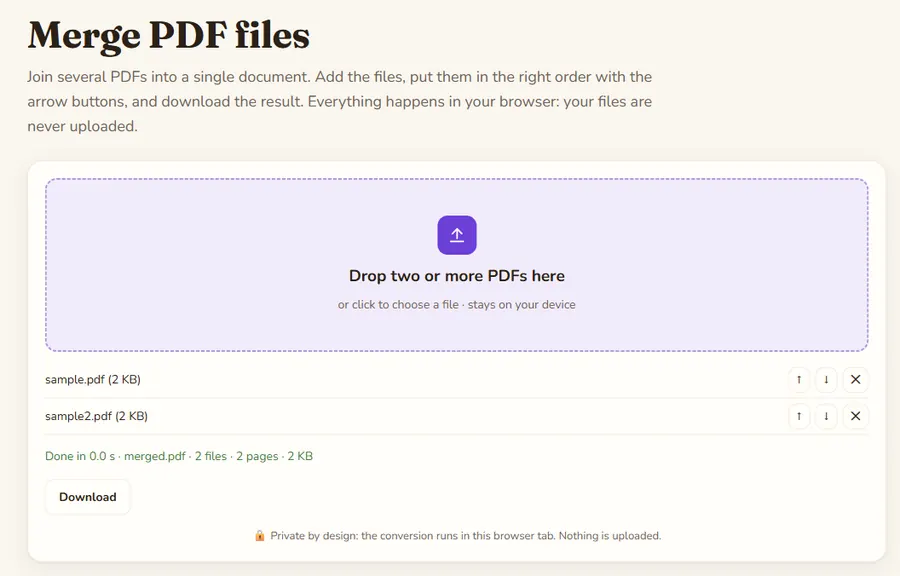
- Drop all the files on the drop zone, or click it and select several files at once. You can add more files in later rounds.
- Check the list under the drop zone. Use the up and down arrows to move a file, and the cross to remove one.
- Look at the order carefully: pages appear in exactly the order of the list. The merged PDF is rebuilt each time you change the list.
- Click Download and open the result to check page count and order before you send it anywhere.
What is kept and what is not
Pages are copied as they are. Text stays selectable, images keep their quality, and files with different page sizes can be mixed (a landscape page next to a portrait page is fine).
Bookmarks, form fields and links that point to other pages of the original files are not carried over. If you rely on a clickable table of contents or fillable forms, rebuild them in a PDF editor after merging.
How do you merge only some pages?
The tool joins whole files. To use only a few pages of a long document, first cut the pages you need with Split PDF, then merge the pieces. If one scan came in upside down, fix it with Rotate PDF before merging.
Why does merging in the browser matter?
Contracts, invoices, tax papers and ID scans are the files people merge most, and exactly the ones you should be careful about. Here the work is done by an open-source library running in your tab, so the documents never leave your computer.
Privacy: the file is processed in your browser tab and is not uploaded to a server. Once the page has loaded you can even disconnect from the internet and it keeps working.
A quick checklist before sending
- Open the merged file and scroll through it once: does the page count equal the sum of the originals?
- Check that no page is upside down or cropped.
- Look at the file size. Email services often cap attachments at around 20 to 25 MB.
- Give it a clear name, such as
2026-lease-complete.pdf, instead of the default.
If the file is too large for email, compress the images inside the source PDFs first, or share a link instead of an attachment.
What if something goes wrong?
- A file is rejected: it is probably encrypted or damaged. Re-save it with "Print to PDF" from a PDF viewer and try again.
- The result is large: merging does not compress. The output is roughly the sum of the inputs, so shrink big scans before merging.
- Pages are in the wrong order: change the order in the list; the result updates.
FAQ
Is there a limit on the number of PDFs?
The tool has no built-in limit. The practical limit is your device memory, since everything is held in the browser tab. Very large batches are better done in smaller groups.
Will merging reduce the quality?
No. Pages are copied without re-rendering, so text and images keep their original quality.
Can I merge password-protected PDFs?
Not directly. Remove the password in the program that created the file, then merge.
Are my files uploaded?
No. The merge runs in your browser, so the files stay on your computer.
Last updated: November 2026. Facts about third-party tools come from their public repositories and documentation. Check licenses before commercial use.