 Hack the Hydra
How to extract text from a scanned PDF
A scanned PDF is only pictures of pages, so you need OCR (optical character recognition). Open the OCR PDF tool, drop the file, choose the document language, and start. Each page is read in your browser and you get the text to copy or download.
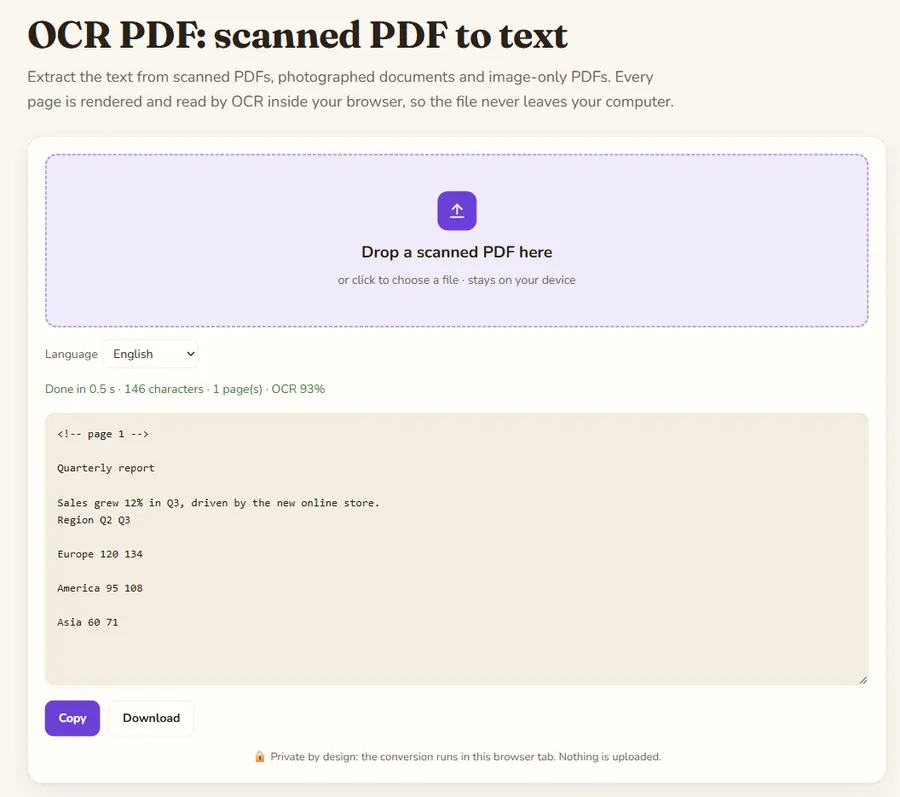
Is your PDF really scanned?
Open the PDF and try to select a sentence with the mouse or search for a word with Ctrl+F. If you can, the file already contains text and does not need OCR; use PDF to Text, which is instant and exact. If you cannot select anything, or the selection highlights whole page-sized blocks, it is a scan.
Steps
- Open OCR PDF.
- Drop the scanned PDF.
- Select the language of the document. This matters: the recognizer uses language data, and the wrong choice causes errors with accents and special letters. Seven languages are available.
- Start and keep the tab open. Each page is rendered at about 200 DPI and then read by Tesseract OCR.
- Copy the text or download it.
Expect a few seconds per page on a recent computer; long documents take proportionally longer.
How do you get better accuracy?
- Scan at around 300 DPI if you still have the paper. Higher is not always better.
- Keep pages straight. Skewed or rotated pages hurt results; fix rotation with Rotate PDF first.
- Use good contrast: black text on a clean white page reads best. Shadows from a phone camera and bleed-through from the back of thin paper add mistakes.
- One language at a time. Mixed-language pages work less well.
What should you expect from the output?
OCR is never perfect. Expect errors in small print, stamps, handwriting, tables and multi-column layouts. The tool gives you text, not a new searchable PDF, so it does not put an invisible text layer back into the file. Always proofread numbers, names and dates against the original before relying on them.
After extraction
Paste the text into a document and clean it up in one pass: fix obvious misreads (the digit 0 and the letter O, or 1 and l, are classic confusions), join lines broken by the page layout, and remove page headers and numbers. If the text will feed an AI assistant or a search index, use PDF to Markdown for any text-based PDFs, and keep the OCR output for the scanned ones.
Only a few pages, or photos
For a single photographed page or a screenshot, Image to Text does the same job without the PDF step.
Privacy: the file is processed in your browser tab and is not uploaded to a server. Once the page has loaded you can even disconnect from the internet and it keeps working.
A quick test: what a clean scan gives
We placed a picture of three printed lines (an invoice number, an amount and a payment term, black on white, about 34 pixels high) into a one-page PDF with no text layer and ran it through the OCR PDF tool with English selected. The result:
<!-- page 1 -->

Invoice 2026-0142
Total due: 1,250.00 EUR
Payment within 30 days.
All three lines came back exactly, including the comma and decimals of the amount, with a reported confidence of 95%. The page marker at the top helps you find page boundaries in long files. A real scan is rarely this clean: expect more errors with phone photos, small print or stamps, and always compare amounts and dates with the original.
FAQ
How do I know if my PDF is scanned?
Try selecting text or searching with Ctrl+F. If nothing can be selected or found, the pages are images.
Can it read handwriting?
Not reliably. OCR works best on printed text; handwriting gives poor results.
Is there a page limit?
The tool sets no page limit. Long files just take longer and need the tab to stay open.
Does it create a searchable PDF?
No. It outputs the extracted text, not a new PDF with a text layer.
Last updated: November 2026. Facts about third-party tools come from their public repositories and documentation. Check licenses before commercial use.