 Hack the Hydra
How to convert a PDF to text
Open the PDF to text tool, drop your PDF and download the .txt file or copy the text. Lines are rejoined into paragraphs and words split at the end of a line are repaired. Everything happens in your browser. If the PDF is a scan, use OCR.
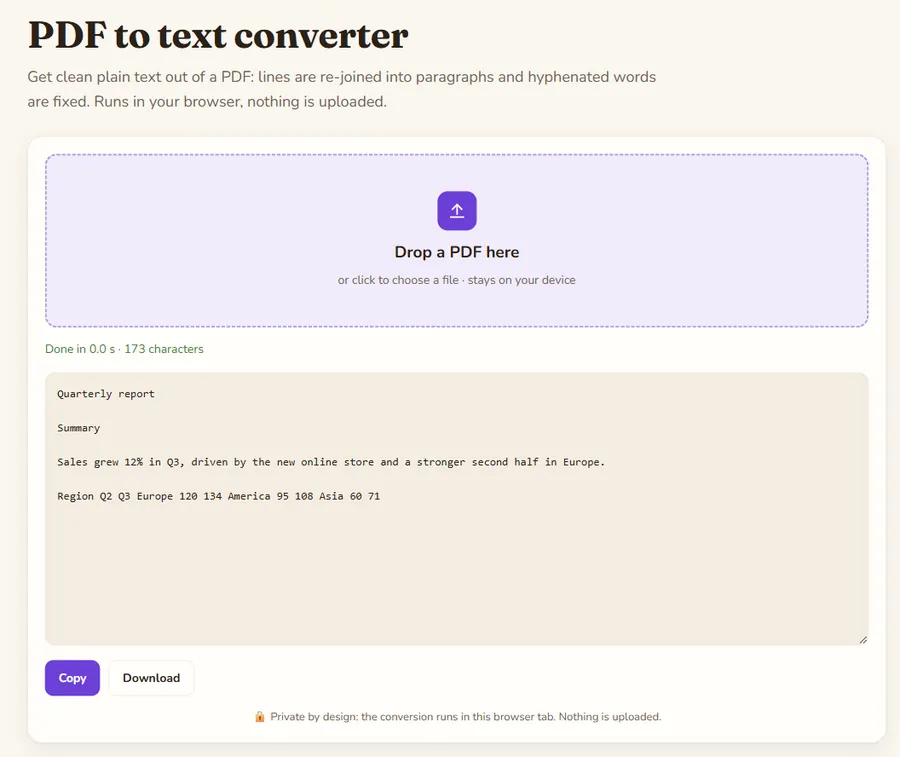
The steps
- Open PDF to text.
- Drop your PDF or click to choose it.
- Wait for the extraction; it is usually very fast.
- Read the beginning of the text to check the paragraph order.
- Copy the text or download the .txt.
Why is copying and pasting from a PDF painful?
When you copy from a PDF reader, every line of the page becomes a line of the pasted text, and words split by a hyphen stay split (“informa- tion”). The tool rejoins the lines into paragraphs and repairs those breaks, which saves minutes of manual cleanup.
What should you check?
- Columns: a multi-column PDF can mix up the reading order; check the first two pages.
- Tables: they become linear text. To keep a structure, try PDF to Markdown.
- Headers and page numbers: they can appear in the middle of the text; remove them by hand if needed.
What if almost nothing comes out?
A file that gives almost no text is a scan: its pages are images. Use OCR PDF, which reads each page in your browser. OCR is slower and can make mistakes, so check numbers and names.
Use cases
- Copy a passage of a contract or report into an email or a document.
- Count the words of a text or prepare it for proofreading.
- Feed an internal search engine or an analysis tool.
- Translate a document with a tool that only accepts text.
For a password-protected PDF, remove the protection first in the original software.
Tip: for a long document, convert it in full first and then use your editor’s search to find a passage, rather than copying page by page. If the text is to be published or quoted, always compare the important figures with the original PDF. Finally, save the .txt as UTF-8 in your editor so that accents and quotation marks display correctly everywhere.
Plain text or Markdown?
Plain text is fine for searching, word counts and copy-paste. If the document is meant for an AI assistant, Markdown keeps the headings, which helps it find its way.
Privacy: the file is processed in your browser tab and is not sent to a server. Once the page is loaded, the tool works even offline.
Worked example: one page, before and after
A one-page policy PDF has a title, two section headings and a paragraph that the layout split over two lines. Copied from a PDF viewer, the paragraph keeps the line break of the page:
Employees can work from home up to three days a week,
after agreement with their manager.
Run through the PDF to text tool, the same page gives:
Remote work policy

Who can work remotely

Employees can work from home up to three days a week, after agreement with their manager.

Equipment

The company provides a laptop and a headset.
Headings and paragraphs are separated by a blank line and the broken sentence is one line again, ready to paste into an email or a translation tool. The same file in the PDF to Markdown tool marks the headings with # so an AI assistant can see the structure.
Should you use PDF to text, PDF to Markdown or OCR?
| Your PDF | Best tool | You get |
|---|---|---|
| Text you can select, you need the words | PDF to text | Plain text, paragraphs rejoined |
| Text you can select, the text goes to ChatGPT, Claude or a search index | PDF to Markdown | Text with headings marked |
| Scanned pages or photos | OCR PDF | Recognised text, to proofread |
FAQ
Why does my copied text have so many line breaks?
PDFs place text line by line. The tool rejoins the lines into paragraphs.
The PDF is a scan, what do I do?
Use the OCR PDF tool, which reads the text from the page images.
Is there a page limit?
The tool sets no limit; very long files just take a little more time.
Is my PDF sent to a server?
No, the extraction happens in your browser.
Last updated: November 2026. Facts about third-party tools come from their public repositories and documentation. Check licenses before commercial use.