 Hack the Hydra
How to make a QR code
Open the QR Code Generator, type or paste your link or text, choose PNG or SVG, and download. The code is drawn in your browser, has no watermark and never expires, because it contains your data directly rather than a redirect.
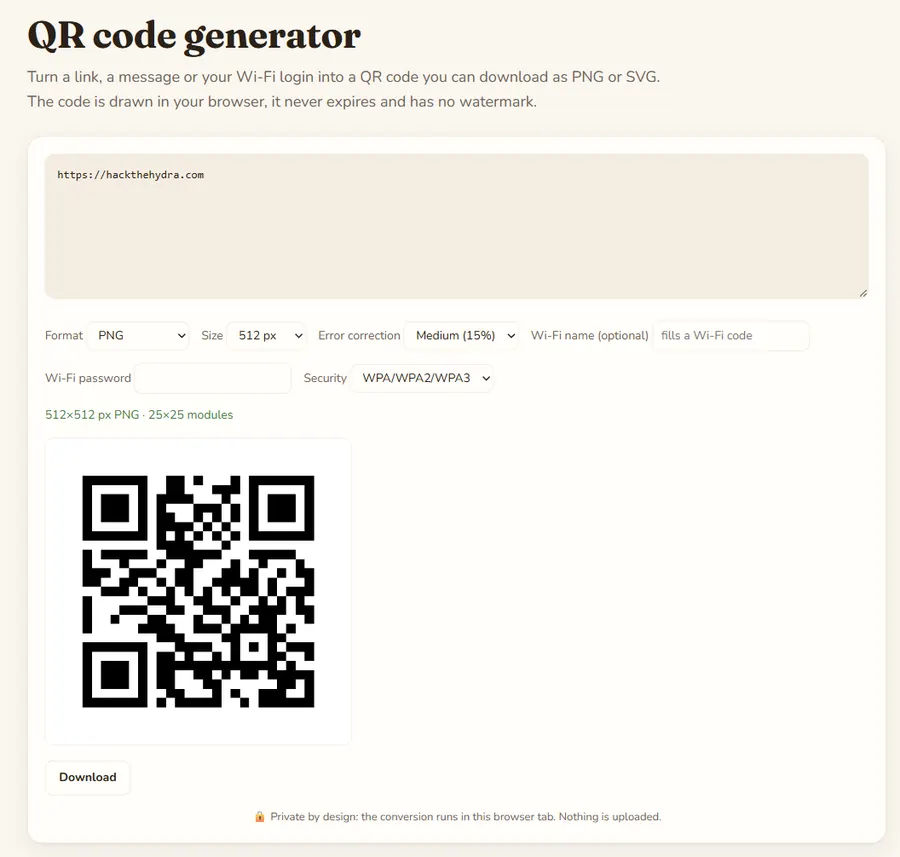
Steps for a link or text
- Open the QR Code Generator.
- Paste the full address, including
https://. Without it some phones treat the text as plain words instead of a link. - Choose the format: PNG for screens and documents, SVG for print and signs.
- Pick the size. Use 1024 px or more if the PNG will be printed.
- Download the code, then test it with your phone before you use it.
How do you make a Wi-Fi QR code?
Guests can join your network by scanning instead of typing a password. Enter the network name in the Wi-Fi name field and the tool switches from plain text to the standard Wi-Fi format. Add the password and pick the security type that matches your router; WPA covers WPA2 and WPA3. Phones with a recent camera app offer to join when they scan it.
Remember that the password is stored in the code in readable form, so only print it where you are happy for people to see it.
What is error correction in a QR code?
Error correction lets a code still scan when part of it is dirty, scratched or covered by a logo. Higher levels cost density: the code gets more squares and is harder to scan from far away.
- Medium (15 %): the default, right for most short URLs.
- Quartile or High: only if the code will be exposed to wear or you place a logo on top.
How do you make a QR code scan every time?
- Keep a blank border (the quiet zone) of about four squares around the code.
- Use a dark code on a light background with strong contrast. Inverted or low-contrast colors fail on many readers.
- Do not stretch the image; keep it square.
- Shorter content gives a simpler, easier code. Long text makes a dense one; use a short URL if possible.
- For print, scan a printed test copy at the real size from the real distance.
Where to use a QR code
Good uses are a menu, a business card linking to your site, a Wi-Fi sign for guests, a link to a form on a poster, or the download page of an app. Always put a short call to action next to the code, such as "Scan to see the menu", so people know why to scan. Avoid placing codes where nobody can stop to scan them, like on a moving vehicle, and do not cover them with glossy lamination that reflects light.
Finally, remember that anyone can create a QR code leading anywhere. Preview the link your phone shows before opening codes from strangers.
Static codes and changing the destination
The code holds your data itself, so there is no scan counter and nothing in the middle that can expire. The flip side: you cannot change where a printed code points. If you may need to change it later, print a short address on a domain you control and redirect that address.
Privacy: the file is processed in your browser tab and is not uploaded to a server. Once the page has loaded you can even disconnect from the internet and it keeps working.
FAQ
Does the QR code expire?
No. It encodes your text or link directly, so it works as long as the destination exists.
Can I use it commercially?
Yes, the generated code has no watermark. Check that the content you encode is yours to use.
PNG or SVG?
PNG for screens and documents; SVG for posters, signs and anything resized, since it stays sharp at any size.
Is my text sent to a server?
No. The code is generated in your browser.
Last updated: November 2026. Facts about third-party tools come from their public repositories and documentation. Check licenses before commercial use.