 Hack the Hydra
How to improve OCR accuracy
Short answer: give the OCR engine sharp, upright, well-cropped images where text is at least about 20 pixels tall (roughly 300 DPI for scans), select the correct language, use a layout mode that matches the image (document vs. sparse text), and check the confidence score to catch bad reads.
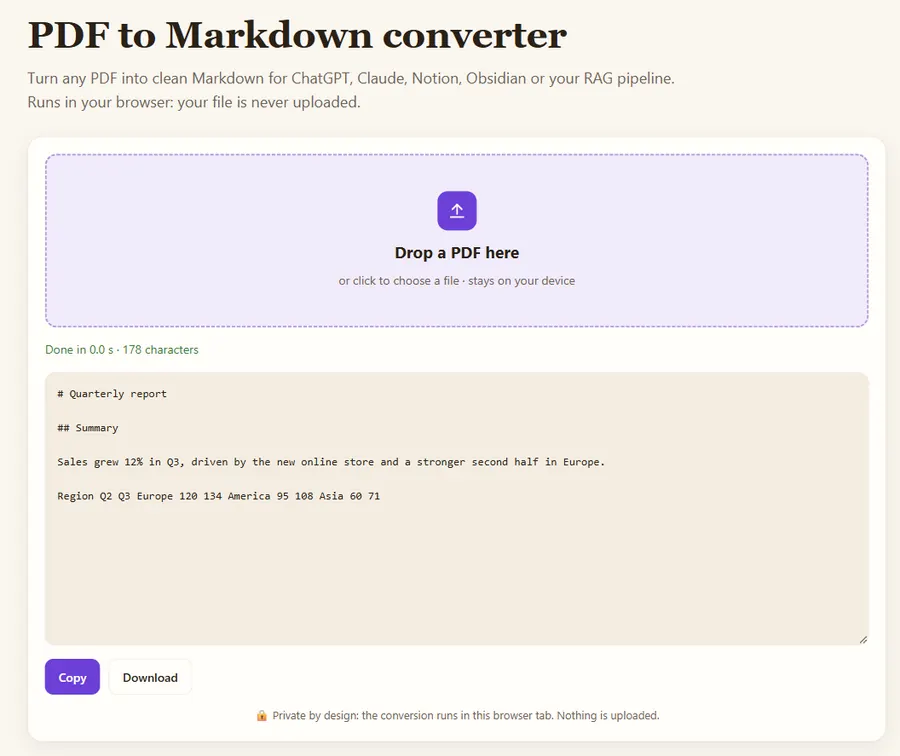
Free PDF to Markdown converter →
How can you improve OCR accuracy? 8 tips
- Resolution: scan at around 300 DPI. Upscaling a tiny screenshot helps less than taking a sharper one.
- Crop to the text you need. Logos, photos and borders create noise.
- Straighten the page. Skewed lines lower accuracy. Phone photos should be shot flat and straight on.
- Contrast: dark text on a light, even background works best. Avoid shadows and glare.
- Language: pick the document language. With the English model, French or German accents are often misread.
- Layout mode: use automatic mode for documents and "sparse text" for screenshots, signs and UI.
- Confidence: low average confidence usually means a bad image. Re-shoot instead of correcting by hand.
- Handwriting: classic OCR engines like Tesseract are built for printed text, so expect poor results on handwriting.
Try it
Use the free image-to-text OCR (runs in your browser) or screenshot to text. For thousands of images with confidence scores and word positions, use the OCR API.
Before and after: what each fix changes
| Problem in the image | Typical symptom | Fix |
|---|---|---|
| Text too small (under ~15 px tall) | Letters merged, many wrong words | Rescan at 300 DPI or enlarge 2x before OCR |
| Page tilted a few degrees | Lines broken in the middle, words missing | Straighten (deskew) the image |
| Phone photo with shadow | Dark half of the page returns nothing | Retake in even light, or raise contrast |
| Wrong language selected | Accents dropped, é becomes e or garbage | Select the document language |
| Two columns read as one | Sentences mixed across columns | Crop each column, OCR separately |
| Coloured or patterned background | Random characters in empty areas | Convert to greyscale, increase contrast |
How do you handle a bad scan in five minutes?
- Look at the image at 100% zoom. If you cannot read the small print easily, the OCR cannot either: rescan or retake it.
- Crop away the desk, fingers and the next page.
- Rotate so lines are horizontal.
- Pick the language, then run the image to text tool.
- Compare one paragraph with the original. If more than a few words per line are wrong, go back to step 1; post-editing a very bad result takes longer than rescanning.
What can OCR not fix?
Handwriting, stylised logos, text on curved surfaces and very low-resolution screenshots stay hard for general OCR engines like Tesseract. For those, typing the text by hand or using a specialised handwriting model is often faster. Also remember that OCR returns text only: bold, colours and exact layout are lost, so check tables and numbers carefully before you reuse them.
FAQ
Why does OCR confuse l, 1 and I?
Those characters look almost identical in many fonts. Higher resolution and the right language model reduce the errors, but always proofread codes and numbers.
Is Tesseract good enough?
For clean printed documents and screenshots, yes. For handwriting or very complex layouts, ML-based document models do better.
Does a higher DPI always help?
Up to about 300 DPI for normal print, yes. Beyond 400 to 600 DPI files get much bigger with little gain, except for very small text.
Last updated: November 2026. Facts about third-party tools come from their public repositories and documentation. Check licenses before commercial use.